Webflow Integration
Connect your Webflow account to publish content generated in Asky directly to your Webflow CMS collections.
What You Get
Connecting Webflow enables:
| Feature | Description |
|---|---|
| Content Publishing | Publish articles and posts to Webflow CMS |
| SEO Meta Descriptions | Sync each draft’s meta description into Webflow’s page level SEO description |
| Status Tracking | Monitor publishing status in Asky |
Prerequisites
Before connecting, ensure you have:
- A Webflow account
- At least one site with CMS capability (not on free plan)
- A CMS collection set up for blog posts or articles
- Editor or Admin access to the site
Webflow’s free plan doesn’t include CMS. You’ll need a CMS Site Plan or higher to use this integration.
Connecting Webflow
Navigate to Connections
Go to Settings → Connections in Asky.
Find Webflow
Locate the Webflow card.
Authorize with Webflow
You’ll be redirected to Webflow:
- Sign in to your Webflow account (if not already)
- Review the permissions requested. Asky asks for read and write access to sites, CMS collections, pages, assets, and custom code so we can publish items, create the Asky Schema field for you, and read your page bindings.
- Click Authorize
Select Your Site
If you have multiple Webflow sites:
- You’ll see a list of available sites
- Select the site you want to publish to
- Click Confirm
Complete Setup
You’ll be redirected back to Asky with Webflow connected.
Meta Description Setup
Asky generates a meta description for every draft. To get that description onto your live Webflow page, you bind one of your CMS fields to the Page Settings → SEO Description slot on the Collection Template. Asky detects the binding automatically and writes the meta description to the bound field on every publish.
This is a one time setup per collection.
Without this binding, your draft’s meta description is still saved in Asky and used in the JSON-LD output, but it never reaches Webflow’s <meta name="description"> tag on the live page.
How it works
Webflow’s Collection Template Page Settings let you bind any PlainText or RichText CMS field to the page level SEO Description. Webflow then renders that field’s value into <meta name="description"> on every published item. Asky scans your Pages API on every load of the publish panel, parses the binding, and:
- If a CMS field is bound, Asky shows an inline Meta Description widget in the Webflow item editor and writes the value into the bound field at publish time.
- If no CMS field is bound, Asky still lets you edit a meta description in a fallback textarea in SEO Settings, but it is saved on the draft only and is not sent to Webflow.
Bind a CMS field to the SEO description
Decide which CMS field will hold the description
You can either reuse an existing field on your collection (for example a Summary or Excerpt PlainText field) or create a new one. If you create a new one:
- Open the collection settings in Webflow Designer
- Add Field → Plain text → Multiple line
- Name it something obvious such as Meta Description
- Save the field
Open the Collection Template’s Page Settings
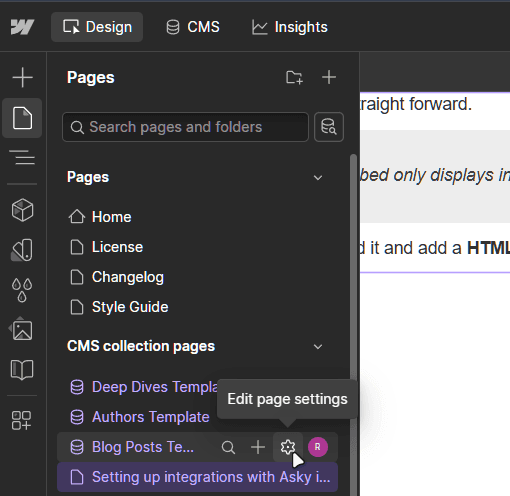
- In Webflow Designer, open the Pages panel
- Under CMS Collection Pages, click the gear icon next to the template for your collection
Bind the field in SEO Settings
- Scroll to SEO Settings
- In the Description field, click the purple + Add Field button
- Select your CMS field (for example
Meta Description,Summary, orExcerpt) from the dropdown - Webflow inserts a binding token. Save Page Settings.
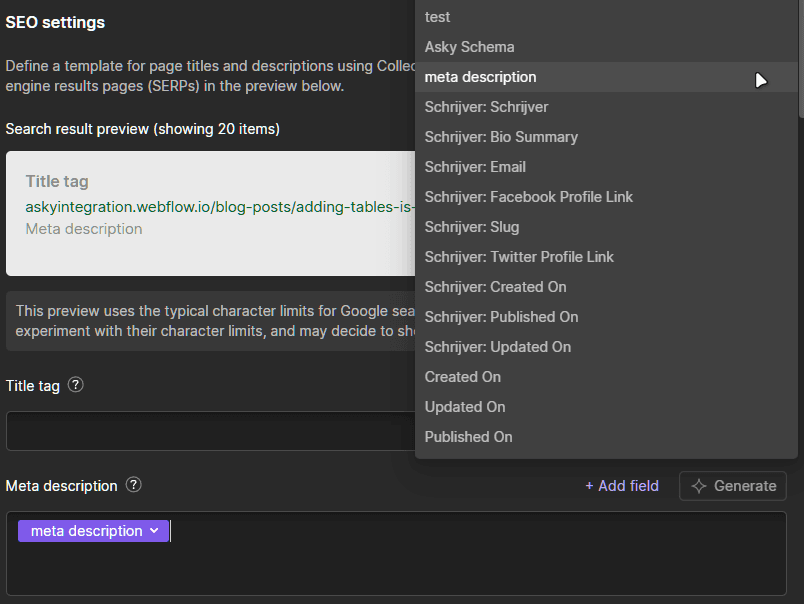
If not already set, make sure to do the same thing for the Title tag, where you should choose the collection field containing the page title (default is Name).
Publish your Webflow site
Click Publish in the top right of the Designer to make the binding live.
Editing the meta description in Asky
Once the binding is in place, open any draft pointed at this collection in Asky. Asky detects the binding and renders the meta description inline as a regular field in the Webflow item editor.

What happens if no field is bound
If Asky doesn’t detect a CMS field bound to the SEO description, the inline widget is replaced by a fallback textarea in the SEO Settings collapsible section near the bottom of the publish panel.
The fallback is fully editable, but it only saves on the draft. The value still feeds Asky’s JSON-LD output, but it does not reach Webflow’s <meta name="description"> until you bind a CMS field as described above.
Troubleshooting
Asky still shows the fallback textarea after I added the binding:
- Click the refresh icon next to the collection picker on the content page so Asky re-scans Page Settings.
- Confirm the field bound in Webflow is a Plain text or Rich text field. Other types (Image, Reference, Number, Link) are ignored because a meta description has to be a plain string.
- Re-publish your Webflow site so the Page Settings change is included in Webflow’s API response.
The live page still has Webflow’s auto generated description:
- Webflow falls back to a default description when the bound CMS field on a specific item is empty. Open the draft in Asky and confirm the Meta Description field has content, then publish again.
Adding JSON-LD to your articles
Webflow does not allow external providers to upload custom scripts like JSON-LD snippets through the API. The easiest way, without much custom development or manually updating every single page, is to use Webflow’s native JSON-LD solution.
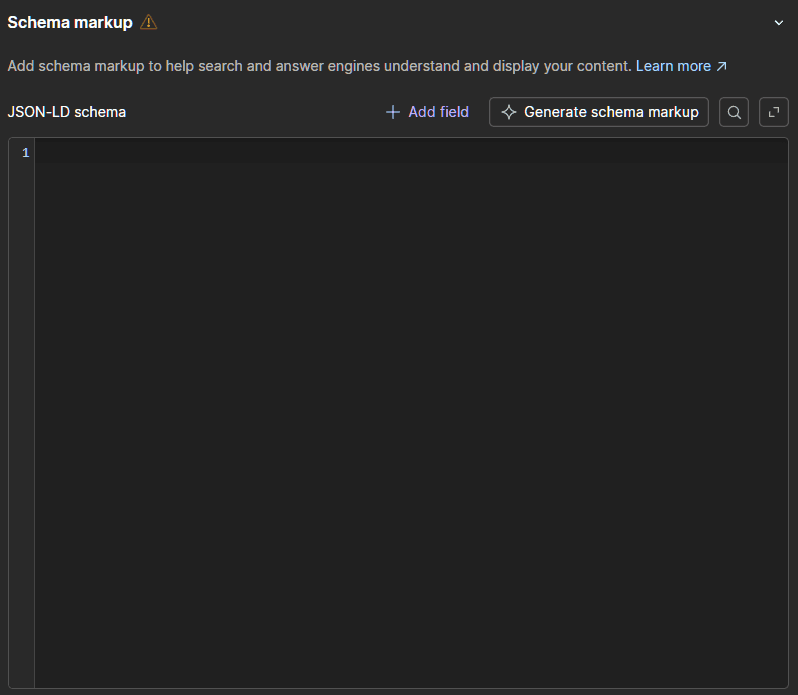
To enable this, go to the Designer tab —> Pages —> Collection Templates —> Settings
Then scroll down to the Schema Markup settings and click Generate schema markup and update the fields as you require.
For more information refer to the Webflow Docs
Adding tables to your articles
Tables perform well in AI search: ChatGPT, Perplexity, Gemini, and Claude frequently pull feature comparisons, pricing matrices, and spec sheets directly out of tables when citing a page. Unfortunately, the Webflow Data API does not allow tables or HTML embeds to be written into rich text fields, so Asky cannot push them in for you automatically.
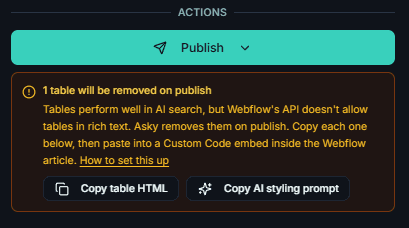
Asky strips tables from the published article and surfaces them in a warning next to the publish button, with a Copy table HTML button per table. The workflow below takes under a minute per article and produces a real, styled HTML table on your live page.
This is a one time setup for the styling (shared across every article on the site). After that, adding a table to a new article is three steps: copy in Asky, paste in Webflow, publish.
Per article: paste the table into a HTML Embed
Copy the table in Asky
On the content page, scroll to the Webflow publishing card. If your article contains one or more tables, you’ll see an amber warning below the Publish button with a Copy table HTML button (a dropdown if there’s more than one table). Click it to copy the raw HTML.
Open the article in Webflow
- In the Webflow Designer, open the CMS panel
- Open the collection item for the article you just published
- Click into the rich text field (the field your article body publishes to, e.g. Post Body / Content)
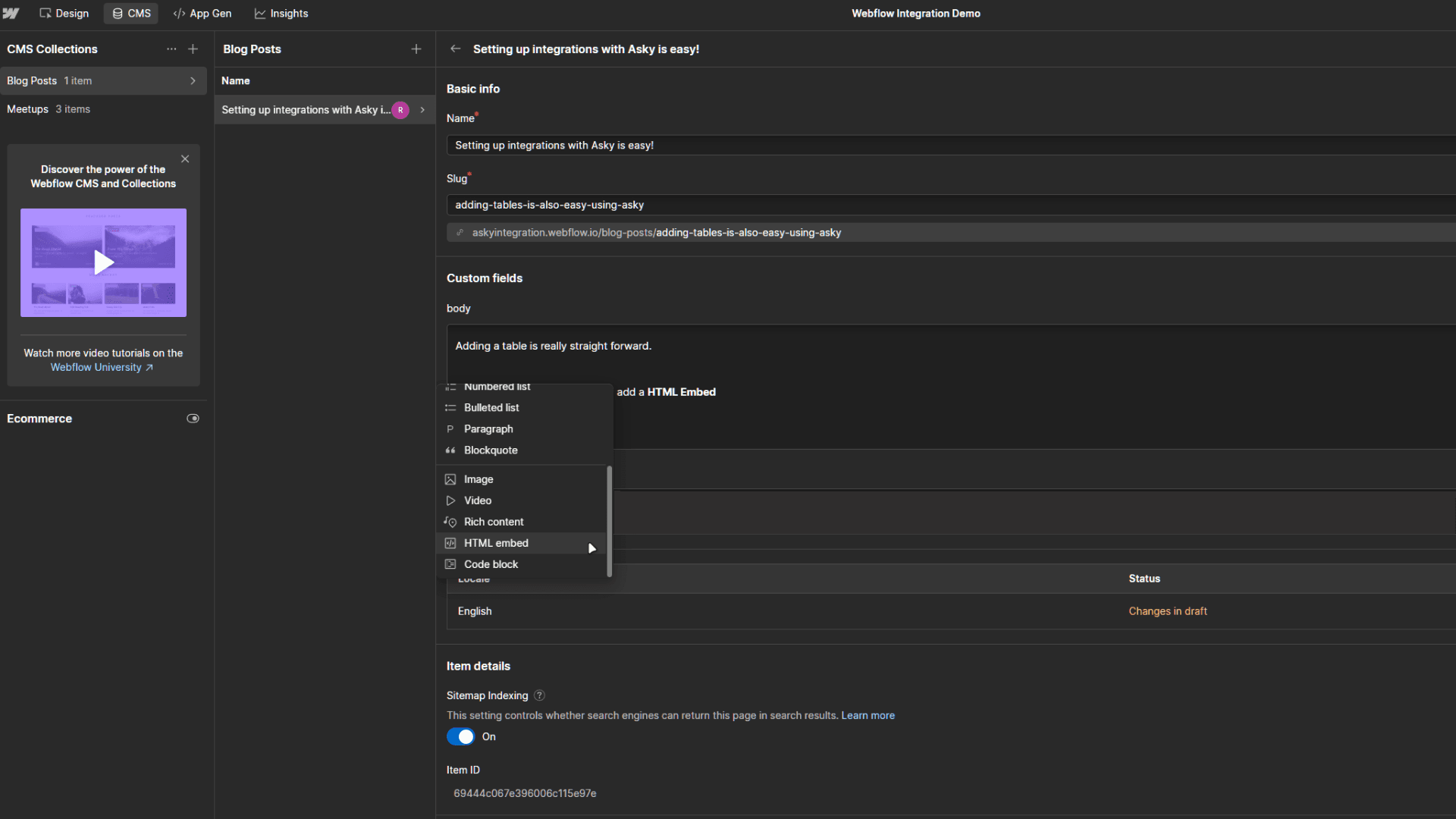
Add a HTML Embed block inside the rich text
- Place the cursor where you want the table to appear
- Click the + button in the rich text toolbar
- Select HTML Embed (this is the only rich text element type that can render arbitrary HTML)
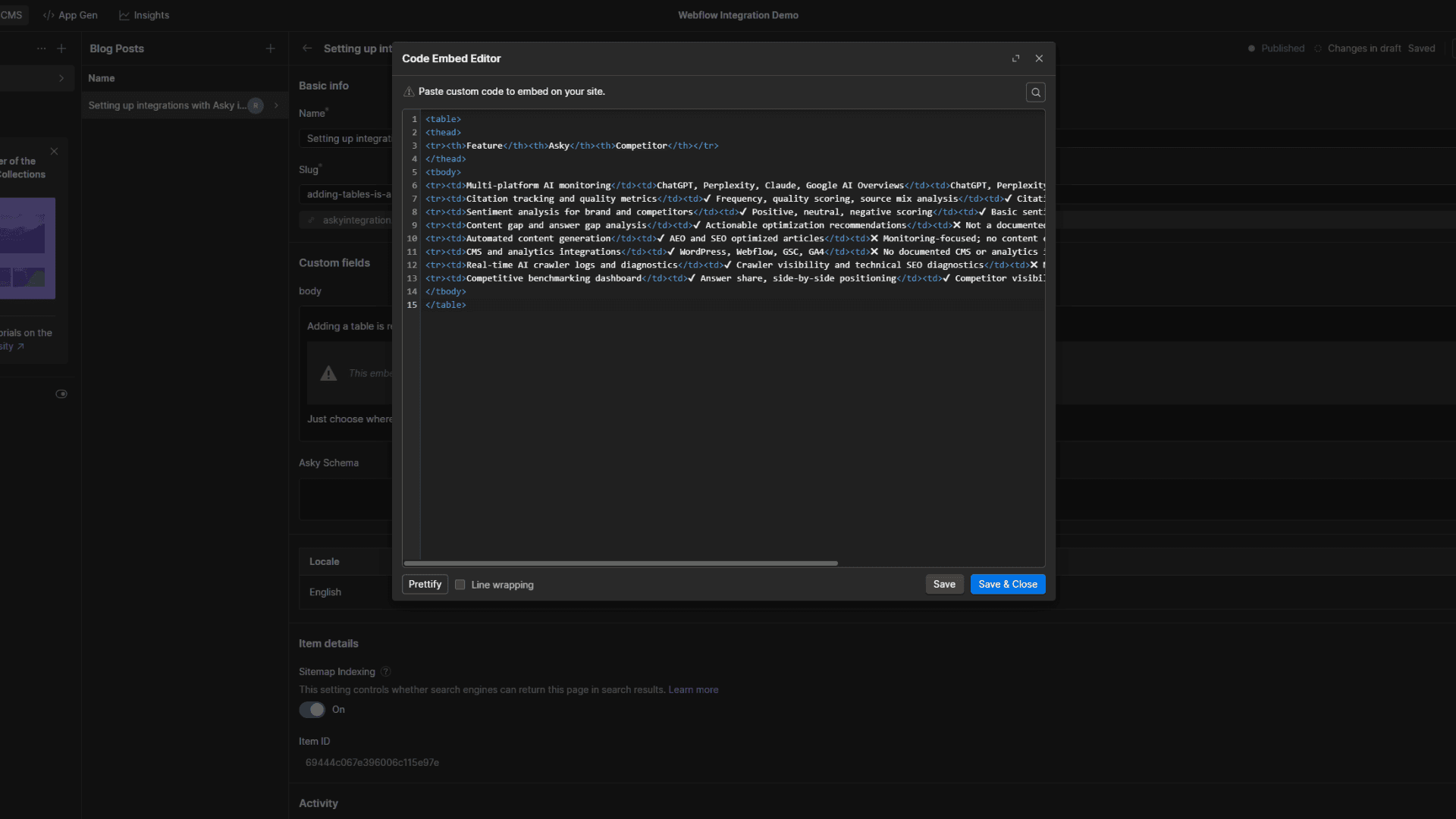
Paste the table HTML
Paste the HTML you copied from Asky into the Custom Code editor. Click Save & Close.
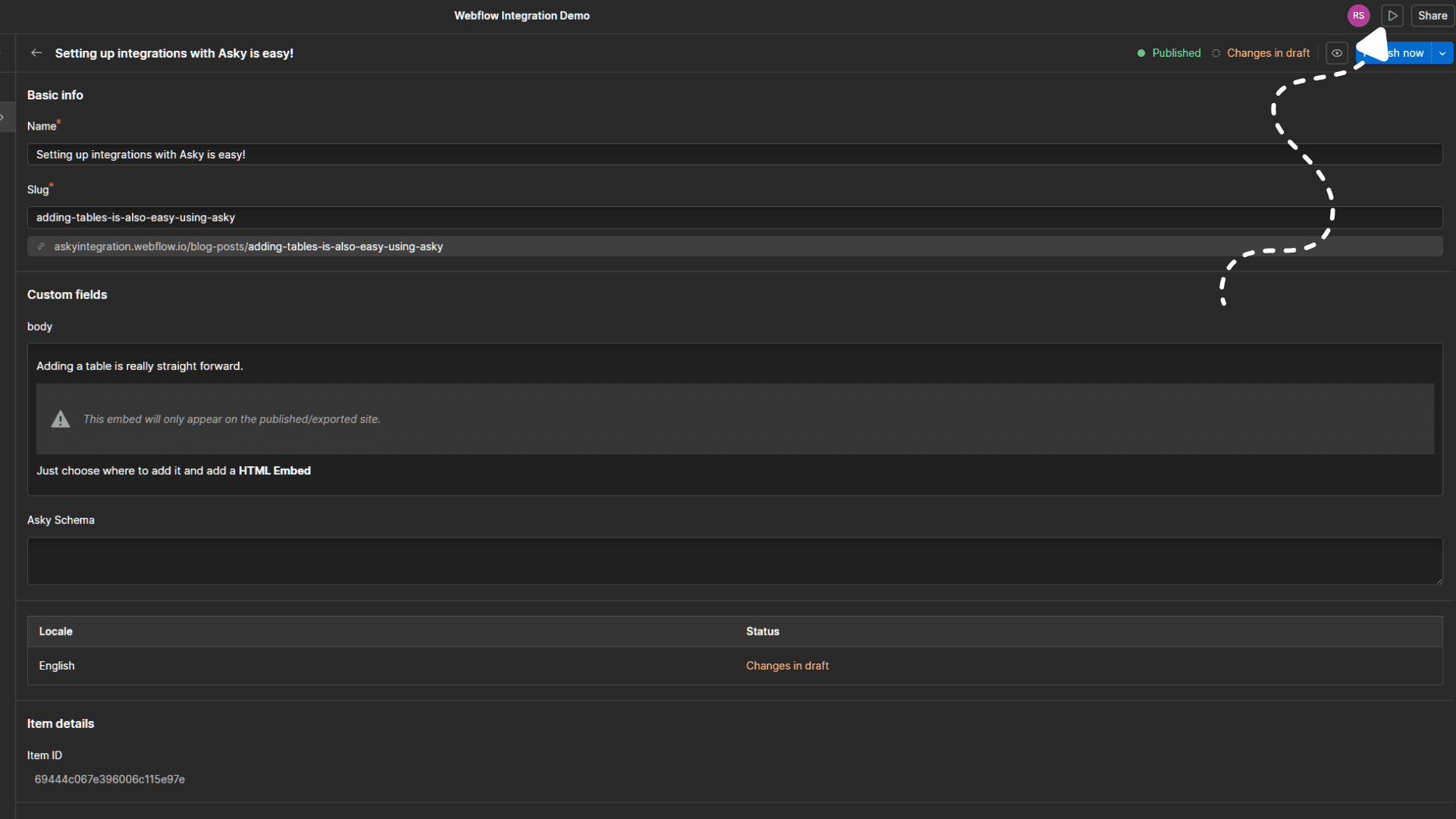
Publish the site
Click Publish in the top right of the Designer. The table is now live on the article page. If you would like to see a preview of what the table looks like first, check out the preview here:
If you want to learn how to change the styling of the table, keep reading.
One time: style every table on the site
Pasted tables render with zero styling by default. The cleanest fix is a site wide stylesheet that targets tables inside Webflow’s rich text wrapper class .w-richtext. You add it once, and every table you ever paste into any article inherits it.
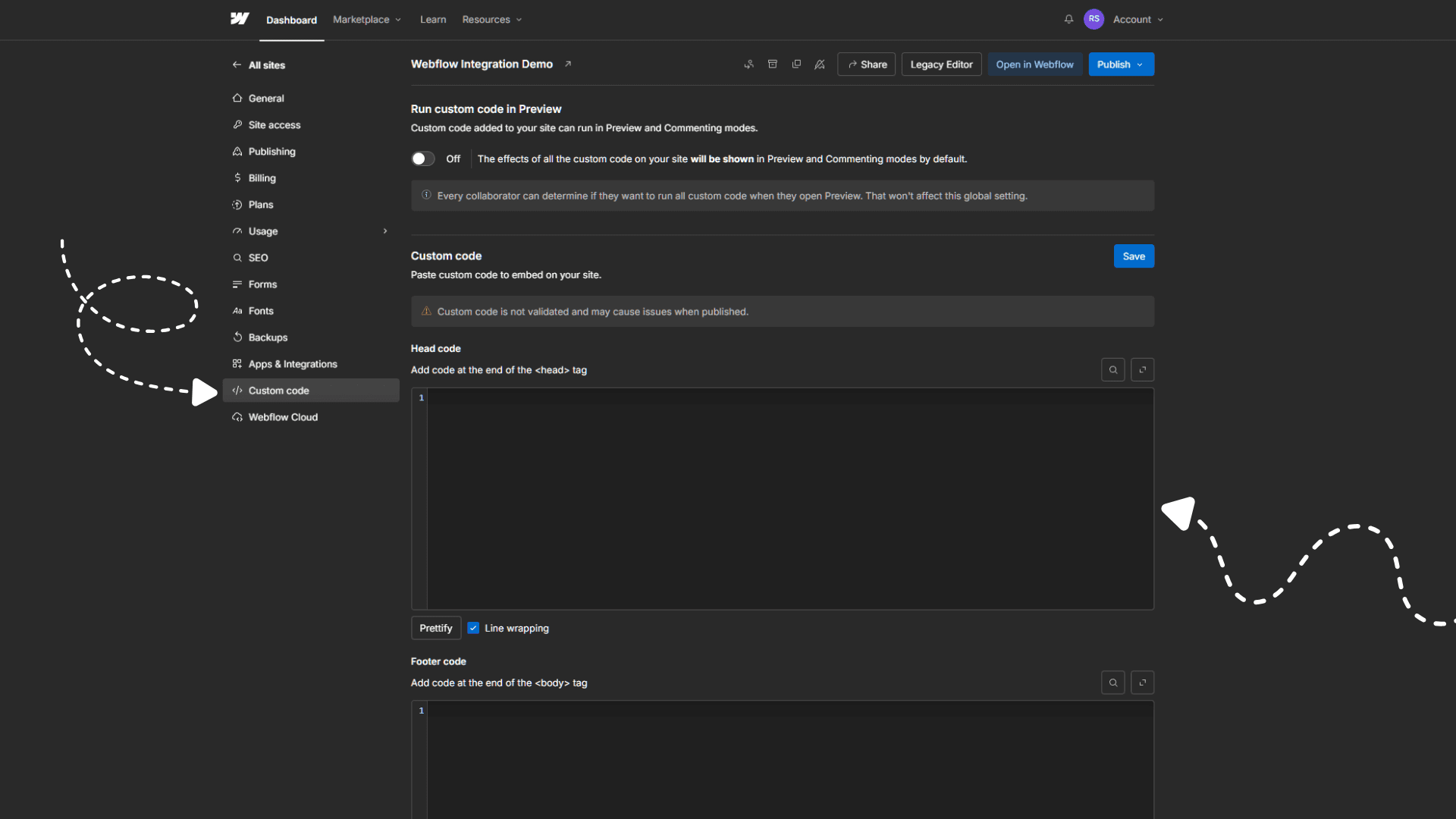
Open Site Settings → Custom Code
- In the Webflow Designer, open Site Settings (gear icon, top left)
- Go to the Custom Code tab
- Scroll to Head Code
Paste the default table CSS
Paste the block below into Head Code:
<style>
  .w-richtext table {
    width: 100%;
    border-collapse: collapse;
    margin: 1.5rem 0;
    font-size: 0.95rem;
    line-height: 1.5;
  }
  .w-richtext thead { background: #f6f6f6; }
  .w-richtext thead th { font-weight: 600; text-align: left; }
  .w-richtext th,
  .w-richtext td {
    border: 1px solid #e5e7eb;
    padding: 0.5rem 0.75rem;
    vertical-align: top;
  }
  .w-richtext tbody tr:nth-child(even) { background: #fafafa; }
</style>
Every selector is scoped to .w-richtext (Webflow’s rich text wrapper), so these rules only touch tables inside article bodies. They won’t conflict with any table you’ve already styled elsewhere on the site.
Save changes and publish the site
- Click Save Changes at the top of the Site Settings page
- Return to the Designer and click Publish in the top right
- Reload any article with a pasted table: it’s now styled
Customize the styling with AI
If you want the tables to match your brand (custom colors, fonts, hover states, responsive collapse, etc.), you can follow these steps.
Paste the following prompt into an AI chat
Paste the prompt into ChatGPT, Claude, Gemini, or any LLM chat and update the placeholder. The prompt looks like:
I'm styling HTML tables inside rich text fields on my Webflow site. Webflow wraps every rich text element in a `.w-richtext` class, so all my table rules need to be scoped to that class.

Here is the CSS I currently have pasted into Webflow under Site Settings -> Custom Code -> Head Code:

<style>
  .w-richtext table {
    width: 100%;
    border-collapse: collapse;
    margin: 1.5rem 0;
    font-size: 0.95rem;
    line-height: 1.5;
  }
  .w-richtext thead { background: #f6f6f6; }
  .w-richtext thead th { font-weight: 600; text-align: left; }
  .w-richtext th,
  .w-richtext td {
    border: 1px solid #e5e7eb;
    padding: 0.5rem 0.75rem;
    vertical-align: top;
  }
  .w-richtext tbody tr:nth-child(even) { background: #fafafa; }
</style>

I'd like to update the styling so that:

{REPLACE THIS WITH WHAT YOU WANT, e.g. "the header row uses my brand color #5B43F0 with white text, body rows have a subtle hover background, and the font is sans-serif at 14px"}

Please reply with the complete, ready-to-paste <style> block that replaces what I have above. Keep every selector scoped to `.w-richtext` so the styles don't leak into other parts of the site. Only return the CSS, no commentary.
Replace the placeholder with what you want
Find the {REPLACE THIS WITH WHAT YOU WANT ...} line and replace it with your actual design goal, e.g.:
“The header row should use our brand color
#5B43F0with white text, body rows should have a subtle hover effect, and the overall font should be Inter at 14px.”
Paste the generated CSS back into Webflow
Copy the CSS the model returns, open Site Settings → Custom Code → Head Code, and replace the existing <style> block with the new one and save. You can now see the new table styling when you preview the page (make sure custom code is enabled for the preview).
Troubleshooting
The table renders but looks wrong (too wide, broken borders):
- Confirm the
<style>block is inside Head Code under Site Settings (not Footer Code, and not on an individual page’s custom code). - Check that your existing site CSS doesn’t set a more specific
.w-richtext tablerule. Webflow’s own template CSS rarely does, but a theme or custom stylesheet might.
The table is there in the Custom Code preview but missing on the live site:
- Click Publish in the Designer. CMS item rich text changes go live at the next site publish.
- Confirm you pasted the HTML inside a HTML Embed block (the
+ HTML Embedoption), not directly into the rich text or a Quote block.
I want different styles per collection or per article:
- Put per collection CSS in the collection template page’s Custom Code (Page Settings → Before
</body>tag). It will scope to that template only. - For per article overrides, add inline
style="..."attributes directly to the<table>,<tr>, or<td>in the HTML Embed block before saving.
Managing the Connection
Viewing Status
The connection card shows:
- Connection status
- Connected Webflow account
- Selected site
Switching Sites
To publish to a different site:
- Go to Settings → Connections
- Find Webflow
- Click Change Site
- Select the new site
Switching Collections
The collection picker lives on the content page. Switch collections per draft from the Collection dropdown above the Webflow item editor.
Disconnecting
To disconnect Webflow:
- Go to Settings → Connections
- Find Webflow
- Click Disconnect
- Confirm
Disconnecting:
- Stops the ability to publish new content
- Does not delete content already in Webflow
- Can be reconnected anytime
Revoking Access
You can also revoke access from Webflow:
- Log in to Webflow
- Go to Account Settings → Integrations
- Find Asky and click Revoke Access
Troubleshooting
Connection Failed
“Authorization Failed”:
- Verify you’re logging into the correct Webflow account
- Check you have Editor or Admin access
- Try disconnecting and reconnecting
“No Sites Found”:
- Verify you have at least one site in Webflow
- Check that you have access to the site
- Ensure the site has CMS enabled
Publishing Fails
“Collection Not Found”:
- Verify collection still exists in Webflow
- Check collection hasn’t been renamed
- Reconnect and re-select collection
“Field Mapping Error”:
- Check required fields are mapped
- Verify field types match
- Update field mapping in settings
“Rate Limited”:
- Wait a few minutes and retry
- Avoid publishing many items rapidly
- Contact support if persistent
“Missing cms:write scope”:
- Reconnect Webflow from Settings → Connections to grant the new permission. This is needed for Asky to provision the Asky Schema field on a collection.
Content Issues
“Content Appears in CMS but Not Live”:
- Publish your Webflow site after adding CMS items
- CMS items need a site publish to go live
“Formatting Lost”:
- Check Webflow collection field type (use Rich text)
- Some complex formatting may need adjustment
- Review content in Webflow editor
Token Expired
If connection shows “Expired”:
- Click Reconnect
- Re-authorize with Webflow
- Re-select site if prompted
Security & Privacy
Permissions Requested
Asky requests:
- Read site list
- Read and write CMS collections (so we can publish items and create the Asky Schema field for you)
- Read pages (so we can detect your Page Settings → SEO and JSON-LD bindings)
- Read and write assets (for image uploads)
We do not access:
- Your Webflow account settings
- Billing information
- Site code or design beyond what is required for the integration
Data Flow
- Content flows one direction: Asky → Webflow
- We don’t import Webflow content
- Published content exists independently in Webflow
Best Practices
- Test with draft: Publish as draft first to verify formatting
- Use appropriate collection: Match content type to collection
- Review in Webflow: Check published items before making live
- Bind your meta description and JSON-LD once: Do the Page Settings setup the first time you connect a collection so every future publish carries SEO data automatically
- Map custom fields: Utilize Webflow’s custom fields for rich content
- Regular checks: Verify connection status periodically
Limitations
| Aspect | Limitation |
|---|---|
| Tables in body | Webflow’s API blocks HTML in rich text. Use the Copy table HTML workflow above. |
| Bulk publish | One item at a time |
| References | Author and other reference fields are auto detected when slug names match. Other reference fields require manual mapping. |
Next Steps
- Connect WordPress for additional publishing