Elementor pages
When a page on your WordPress site is built with Elementor, Asky updates it through Elementor’s own content rather than through the standard WordPress editor. This page explains what that means, what Asky changes, and what to do when the live page still shows the old text after an update.
What Asky updates
An Elementor page is a tree of widgets. Asky reads the text of Heading and Text Editor widgets, the questions and answers of Accordion and Toggle widgets, and the answers of a Nested Accordion, and writes back only what you changed in your review:
- An edited paragraph or heading is saved into the widget it came from, and so is a heading’s new level. A new level for the titles of an Accordion or Toggle is saved when every title it will show, including any you add, is given the same level: Elementor keeps one level for all of them.
- An edited answer is saved into its own item of the FAQ, and a new question becomes a new item of the same FAQ. The FAQ’s schema setting is left as it is.
- A new section becomes new Heading and Text Editor widgets that take their look from the widgets of the same kind on the page. A section added in the middle of a text widget splits that widget in two, around the new section.
- In a Nested Accordion, the answers are edited in place and the questions are shown in the review but not changed: Elementor keeps those in the widget itself rather than in the answer below them. A whole new section added inside one of its answers is placed before or after the accordion instead, because an answer stays closed until a reader opens it. The review tells you when an update does that.
Every other widget, and everything else in the page’s design, is left exactly as it was: images, buttons, forms, custom code, spacing and styling.
Widgets that carry words but that Asky does not edit, such as a Blockquote, an Icon List or a Testimonial, are shown in the review as text it keeps. They count as part of the page when Asky judges what the page already covers, so nothing is written twice, and they are never changed.
The title and the excerpt of the page are updated the ordinary WordPress way at the same time.
After writing, Asky reads the page back from WordPress and checks that every change it sent is stored. If anything did not land, the update is reported as not saved and nothing on your page changes.
Why the page can still show the old version
Elementor keeps a copy of each page’s rendered HTML so it can serve pages faster. This is called Element Caching. It is part of Elementor and switched on by default. When Asky updates a page, the new content is stored in WordPress straight away, but Elementor keeps serving its cached copy until that copy expires or is cleared.
The cache clears itself. On Elementor’s default setting the cached copy expires within seven days, and the live page then shows the new version without anyone doing anything. You can see and change the expiry on Elementor’s Settings page, on the Performance tab, under Element Cache. On Elementor 3 that page is in the WordPress left menu under Elementor, Settings. Elementor 4 no longer lists it there, so go to yoursite.com/wp-admin/admin.php?page=elementor-settings with your own site’s address.
When this happens, Asky tells you at the moment of publishing, both in the sidebar and in the confirmation message, and gives you the address of your site’s Elementor Tools page.
Showing the new version straight away
If you do not want to wait, clear Elementor’s cache. This needs an administrator account on your WordPress site.
- Open Elementor’s Tools page. On Elementor 3 it is in the WordPress left menu under Elementor, Tools. Elementor 4 no longer lists it in the menu, so go to
yoursite.com/wp-admin/admin.php?page=elementor-toolswith your own site’s address, or follow the link in Asky’s message. - On the General tab, find Elementor Cache and click Clear Files & Data.
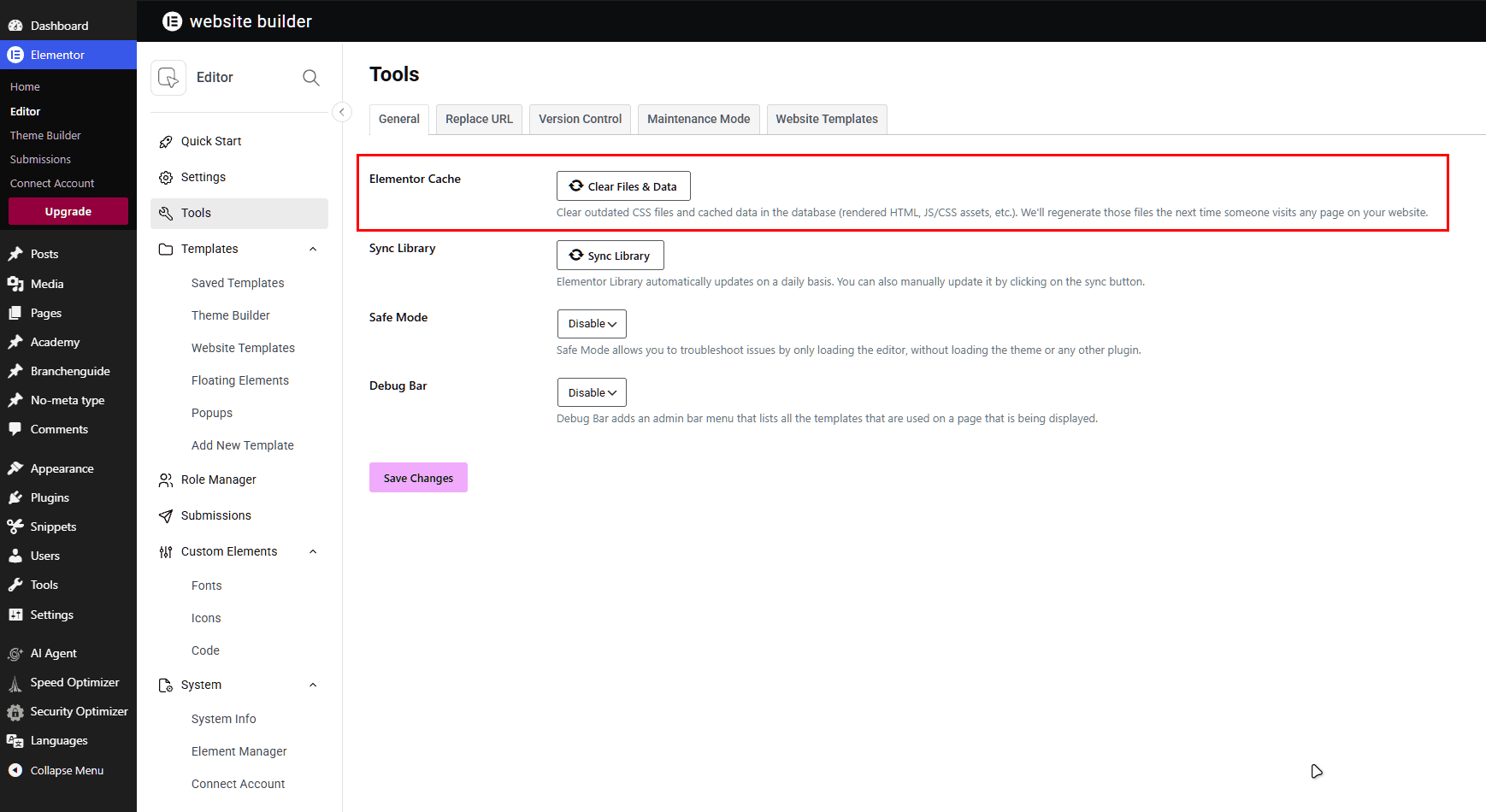
Elementor regenerates the page the next time someone visits it. The button clears the cache for the whole site, which is harmless: every page is rebuilt on its next visit.
If your hosting company also caches pages, clear that cache as well. Some hosts add their own button to this same Tools page.
Two other things also refresh a single page:
- Opening the page in Elementor and clicking Update. Elementor rebuilds that page’s cached copy when it is saved from its editor.
- Waiting for the cache to expire, as described above.
When Asky clears the cache for you
Elementor only lets administrators clear its cache. If the WordPress account connected to Asky is an administrator, Asky clears the cache for the page as part of the update and the live page shows the new version immediately. If the connected account is an editor, which is the more common and safer choice, Asky cannot clear the cache and tells you so instead.
Pages Asky cannot update in place
Some Elementor pages cannot be updated from Asky. In those cases the review still runs against the live page, and the changes are handed to you to copy across by hand:
- Pages on post types that do not expose their fields to the WordPress API. A post type registered without custom fields support keeps its Elementor content out of reach of any external tool.
- Pages built with Elementor’s newer atomic widgets. Their text is not stored where Asky can read it yet.
- Pages whose text widgets contain broken HTML. Asky checks that it can read a page and write it back unchanged before offering to update it; a page that fails that check is not touched.
Related
- WordPress for connecting your site and choosing the account Asky uses.